
PDF files make it easy to share documents, maintain formatting, and present information professionally. However, correcting a mistake, replacing an image, signing a form, or rearranging pages can become frustrating without the right software. A good PDF editor solves these problems by allowing you to update documents without rebuilding them from scratch. Whether you need a free tool for occasional changes or professional software for daily work, this guide compares 10 popular options and explains how to choose the right one.
What Is a PDF Editor?
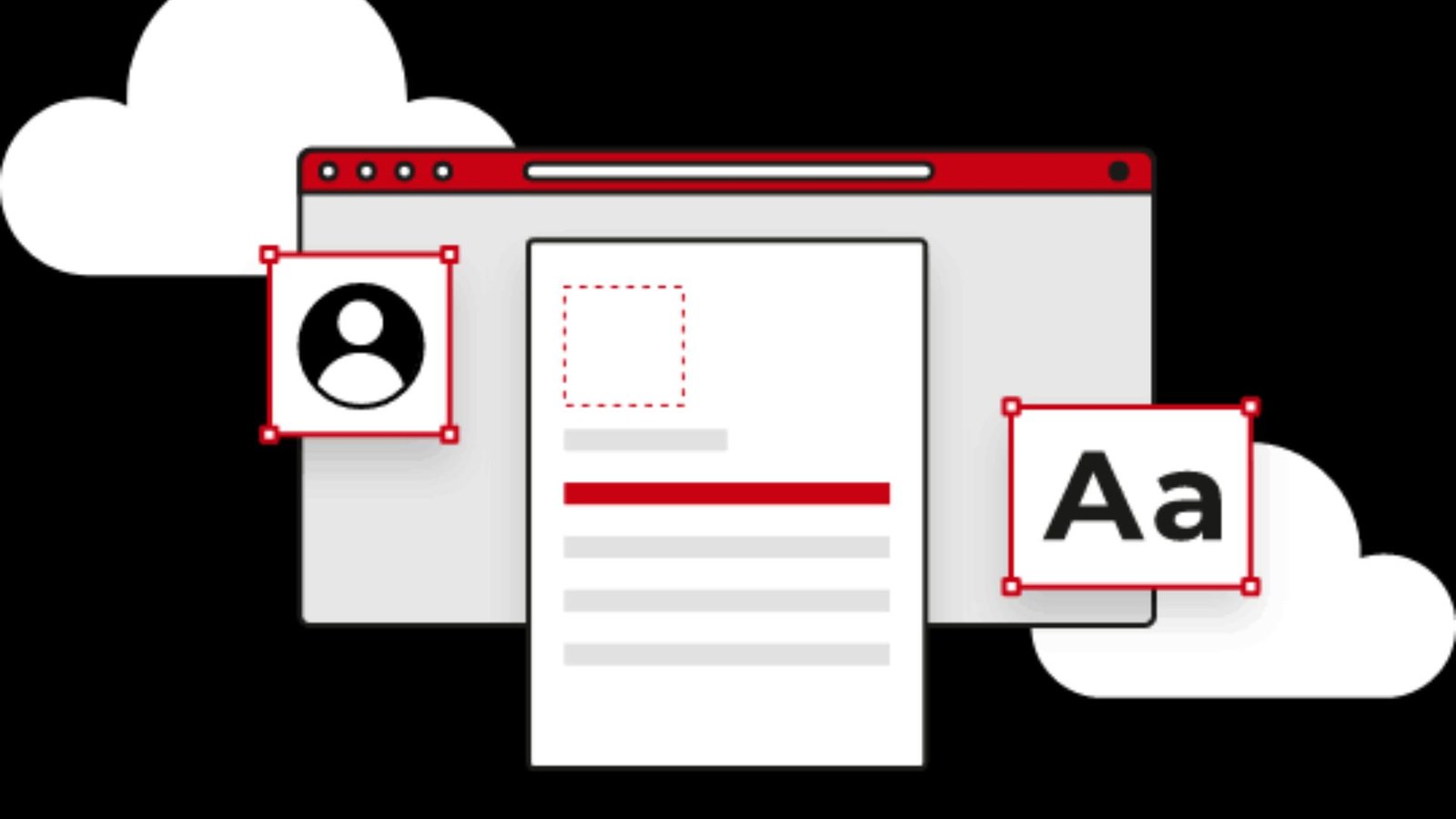
A PDF editor is a software application or online service that allows users to modify, organise, annotate, sign, and manage Portable Document Format (PDF) files. Instead of creating a document again in Microsoft Word, you can make changes directly to the existing PDF.
Depending on the software, you can perform tasks such as:
- Add, delete, or replace text.
- Insert, resize, or remove images.
- Highlight important information and add comments.
- Combine multiple PDF documents into one file.
- Split a large document into smaller files.
- Rearrange, rotate, or delete pages.
- Add electronic signatures.
- Convert PDFs into Word, Excel, or image formats.
- Protect documents with passwords.
- Recognise text from scanned documents using Optical Character Recognition (OCR).
For example, imagine you receive a five-page business proposal with an incorrect telephone number. Rather than requesting the original Word document, you can use an editing application to correct the information directly in the PDF.
The available features depend on the product and subscription plan. Some free services handle basic changes, while professional applications offer advanced editing, OCR, document comparison, and security features.
Why Do You Need a PDF Editor?
PDF documents are widely used in education, business, administration, and professional communication. However, a PDF is not always as easy to change as a Word document.
The right software helps you save time, reduce manual work, and maintain document quality.
1. Correct Text Without Recreating Documents
You can correct spelling mistakes, update contact details, change dates, and replace outdated information without rebuilding the entire document.
2. Update Images and Visual Elements
Some applications allow you to insert new photographs, replace existing images, resize graphics, and adjust their positions.
This is particularly useful for brochures, presentations, product catalogues, and business reports.
3. Organise Pages Easily
You can remove unnecessary pages, combine separate documents, extract important sections, and rearrange the document according to your requirements.
4. Complete and Sign Digital Forms
Students, employees, business owners, and customers regularly receive forms in PDF format. Editing software makes it easier to enter information, add signatures, and complete documents digitally.
5. Protect Important Information
Password protection, permissions, and permanent redaction can help protect confidential information. However, simply placing a black rectangle over sensitive text does not permanently remove the underlying information.
Always use a proper redaction feature and verify the final document.
What Features Should You Look for in the Best PDF Editor?
Choosing software based only on its popularity can lead to unnecessary expenses. First, identify the tasks you perform regularly.
The following table explains the most important features and why they matter.
| Feature | What It Does | Who Needs It? |
|---|---|---|
| Text editing | Adds, removes, or changes existing text | Students and professionals |
| Image editing | Inserts, replaces, and resizes pictures | Designers and businesses |
| Page management | Deletes, rotates, extracts, and rearranges pages | Everyone |
| PDF merging | Combines multiple documents | Office workers and students |
| PDF splitting | Separates selected pages | Researchers and administrators |
| OCR technology | Converts scanned text into searchable content | Researchers and businesses |
| Electronic signatures | Allows users to sign documents digitally | Employees and customers |
| Form filling | Completes interactive PDF forms | Students and applicants |
| Password protection | Restricts access to documents | Businesses and professionals |
| PDF conversion | Converts files into Word, Excel, and other formats | Office workers |
| Annotation tools | Adds highlights, comments, and notes | Teachers and students |
| File compression | Reduces document size | Anyone sharing large files |
Why Is OCR Important?
OCR stands for Optical Character Recognition. It identifies letters and words inside scanned images and converts them into machine-readable text.
For example, if you scan a printed textbook page, your computer may initially recognise it as a picture. OCR can identify the printed words and make the content searchable.
Remember that OCR accuracy depends on image quality, language, handwriting, and document condition. Always review recognised text before using it in an important document.
10 Best PDF Editor Tools in 2026
There is no single application that is perfect for every user. Some tools are better for quick online changes, while others provide advanced editing and professional document management.
Below are ten options worth considering.
1. Adobe Acrobat – Best for Professional PDF Editing
Adobe Acrobat is one of the most established document management solutions. It provides tools for editing, creating, converting, signing, organising, and protecting PDF documents.
Its editing capabilities allow users to change existing text, replace images, adjust formatting, and work with scanned documents using OCR.
Main features:
- Edit existing text and images.
- Add or remove PDF content.
- Organise and rearrange pages.
- Convert documents into other formats.
- Fill and sign digital forms.
- Work with scanned documents.
- Apply document security features.
Advantages:
- Comprehensive document management capabilities.
- Suitable for professional workflows.
- Supports advanced PDF operations.
- Offers desktop and browser-based functionality.
Limitations:
- Advanced features generally require a paid subscription.
- Beginners may need time to understand the full interface.
- Some complex layouts require manual formatting adjustments.
Best for: Businesses, professionals, researchers, and users who regularly manage important PDF documents.
The Adobe PDF editor is a strong choice when document accuracy and advanced editing capabilities matter more than finding a completely free solution.
2. Foxit PDF Editor – Best for Business and Productivity
Foxit PDF Editor is a professional document application designed for creating, editing, converting, signing, and managing PDF files.
It supports Windows, macOS, and web-based workflows. Its feature set includes text editing, image editing, page organisation, document comparison, OCR, and security tools.
Main features:
- Edit text, images, and page content.
- Create and complete PDF forms.
- Convert PDFs into Microsoft Office formats.
- Compare different document versions.
- Recognise text from scanned documents.
- Add passwords and security restrictions.
- Collaborate through commenting and review tools.
Advantages:
- Wide range of professional editing features.
- Useful document comparison tools.
- Supports business and team workflows.
- Offers different licensing options.
Limitations:
- Advanced tools require a paid plan.
- Some users may find the number of features overwhelming.
- Pricing and included features vary by plan.
Best for: Business owners, office employees, legal professionals, and organisations handling large numbers of documents.
Foxit is worth considering if you need more than basic annotations and page organisation.
3. Sejda PDF Editor – Best for Quick Online Changes
Sejda is a browser-based document service that allows users to perform common PDF operations without installing desktop software.
Its online tools support text editing, annotations, image insertion, document signing, page management, and conversion.
Main features:
- Add and edit text.
- Insert images and shapes.
- Fill and sign documents.
- Add hyperlinks.
- Annotate PDF pages.
- Delete and organise pages.
- Convert documents into different formats.
Advantages:
- Convenient browser-based access.
- Useful for occasional editing.
- Includes several PDF management tools.
- Offers a desktop version for offline processing.
Limitations:
- Free usage has task and file-size restrictions.
- Some advanced operations require a paid plan.
- Online processing requires uploading documents.
Best for: Students, freelancers, and individuals who need occasional document changes.
Sejda is a practical option when you want a free PDF editor for simple tasks without installing a large application.
4. Canva PDF Editor – Best for Visual Document Design
Canva is widely used for creating visual content, including presentations, posters, brochures, and social media graphics. Its PDF editing feature allows users to import supported PDF documents and modify their editable elements.
You can change text, replace images, adjust layouts, and add design elements through its visual interface.
Main features:
- Import PDF documents.
- Edit supported text and images.
- Add graphics, shapes, and design elements.
- Rearrange or insert pages.
- Create visually appealing documents.
- Export designs into PDF and image formats.
Advantages:
- Beginner-friendly visual interface.
- Useful design and layout tools.
- Suitable for marketing materials.
- Offers collaboration features.
Limitations:
- Imported layouts may change slightly.
- Unsupported fonts may be replaced.
- Scanned PDFs generally import as flattened images.
- Complex documents may require additional adjustments.
Best for: Students, marketers, content creators, and small businesses.
Canva is particularly useful when your goal is to improve the visual appearance of an existing document rather than perform advanced technical PDF editing.
5. PDFescape – Best for Basic PDF Form Editing
PDFescape is an online PDF service that focuses on common document editing and form-related tasks.
It can help users add text, insert annotations, complete forms, and manage selected PDF elements.
Main features:
- Add text to documents.
- Insert annotations.
- Complete PDF forms.
- Add shapes and other elements.
- Manage selected document pages.
- Protect supported documents.
Advantages:
- Accessible through a browser.
- Useful for basic document tasks.
- Suitable for users who do not need professional editing software.
Limitations:
- Advanced functionality may require a premium plan.
- Complex document editing can be limited.
- Feature availability depends on the version.
Best for: Individuals who need basic PDF form filling and annotation.
6. Smallpdf – Best for Everyday PDF Tasks
Smallpdf offers a collection of browser-based document tools. Its services include PDF conversion, compression, merging, splitting, and document management.
It is particularly useful when you want to perform a specific task without learning complicated software.
Main features:
- Compress PDF files.
- Merge multiple documents.
- Split PDF pages.
- Convert PDF files into other formats.
- Sign documents.
- Organise pages.
- Edit supported PDF content.
Advantages:
- Simple interface.
- Wide range of document tools.
- Useful for everyday tasks.
- Works through a web browser.
Limitations:
- Free usage may have restrictions.
- Some features require a subscription.
- Advanced editing may be less suitable for complex documents.
Best for: Students, office workers, and individuals who regularly convert or organise documents.
7. PDFgear – Best for Users Looking for Free Desktop Tools
PDFgear provides PDF management and editing tools for users who want desktop-based document functionality.
Its available capabilities include editing, annotation, conversion, page management, and document interaction.
Main features:
- Edit supported PDF content.
- Add comments and annotations.
- Merge and split documents.
- Convert PDF files.
- Organise pages.
- Work with document-related AI features.
Advantages:
- Offers a free desktop option.
- Useful collection of PDF tools.
- Suitable for common document tasks.
Limitations:
- Feature availability can differ across platforms.
- Complex PDF layouts may need manual adjustments.
- Users should review privacy and data-handling terms before processing sensitive documents.
Best for: Students and individual users looking for desktop PDF tools without an immediate subscription.
8. iLovePDF – Best for PDF Conversion and Organisation
iLovePDF is an online platform focused on PDF conversion, compression, organisation, and related document operations.
It is a convenient choice when you frequently work with multiple PDF files.
Main features:
- Merge PDF documents.
- Split selected pages.
- Compress large files.
- Convert PDF into Word and other formats.
- Add page numbers.
- Rotate PDF pages.
- Protect documents.
Advantages:
- Easy-to-understand tools.
- Suitable for everyday document management.
- Offers web and desktop options.
- Useful for batch document operations where supported.
Limitations:
- Some tools have usage restrictions.
- Advanced features may require payment.
- It is more focused on document processing than detailed page-level editing.
Best for: Students, administrators, and office professionals who need frequent document conversion and organisation.
9. Kami PDF Editor – Best for Education and Collaboration
Kami is an educational document platform that allows teachers and students to interact with PDF files and other learning materials.
It focuses on annotation, classroom activities, feedback, and collaborative learning.
Main features:
- Highlight important information.
- Add comments and notes.
- Write and draw on documents.
- Add text boxes.
- Support classroom assignments.
- Share learning materials.
- Provide feedback on student work.
Advantages:
- Useful for classroom activities.
- Supports teacher-student interaction.
- Helpful for reviewing assignments.
- Offers education-focused workflows.
Limitations:
- Advanced features may require a paid educational plan.
- It is not designed primarily for complex PDF text replacement.
- Some features depend on account and school arrangements.
Best for: Teachers, students, educational institutions, and online classrooms.
10. Google Drive and Google Docs – Best for Basic Document Collaboration
Google does not offer a dedicated professional PDF editing application called Google PDF Editor. However, Google Drive and Google Docs can support certain PDF-related workflows.
Users can store, preview, share, and collaborate on documents through Google Drive. Opening supported PDFs with Google Docs can also extract text for editing.
Main features:
- Store PDF documents in Google Drive.
- Preview and share files.
- Open supported PDFs using Google Docs.
- Extract recognised text from suitable documents.
- Edit extracted content in Google Docs.
- Export the edited document back into PDF format.
Advantages:
- Convenient cloud-based workflow.
- Useful for collaborative document editing.
- Integrates with Google Workspace.
- Suitable for basic text extraction and document conversion.
Limitations:
- Original PDF formatting may not be preserved.
- Complex layouts may change during conversion.
- It is not a replacement for a dedicated professional PDF editing application.
Best for: Students, teachers, and teams who already use Google Workspace.
Detailed Comparison: Which PDF Editor Is Best for You?
Choosing between different applications becomes easier when you compare their main purposes, editing capabilities, and limitations.
The following table provides a practical overview.
| Software | Main Strength | Online/Desktop | Free Access | Best For |
|---|---|---|---|---|
| Adobe Acrobat | Advanced PDF management | Both | Limited | Professionals |
| Foxit PDF Editor | Business document editing | Both | Free trial/tools | Businesses |
| Sejda | Quick PDF editing | Both | Limited | Occasional users |
| Canva | Visual PDF design | Both | Yes, with limitations | Designers |
| PDFescape | Forms and annotations | Online/Desktop options | Limited | Basic users |
| Smallpdf | PDF conversion | Both | Limited | Everyday tasks |
| PDFgear | Desktop PDF tools | Desktop and other supported options | Free option | Individual users |
| iLovePDF | Document organisation | Both | Limited | Students and offices |
| Kami | Education and annotation | Web-based | Limited | Teachers and students |
| Google Drive/Docs | Cloud collaboration | Online | Free account options | Collaborative work |
Important: Free access does not mean every feature is available without restrictions. File size, processing limits, OCR availability, export options, and subscription requirements differ between products. Check the current plan before choosing a tool.
How to Choose the Best Free PDF Editor
Finding the right application depends on your actual requirements. You do not necessarily need expensive professional software to correct a few words or sign a document.
Use the following recommendations to narrow your options.
For Students
Students often need to highlight textbook chapters, add notes, complete forms, and organise assignments.
Consider:
- Kami for learning and classroom annotation.
- Sejda for occasional PDF changes.
- Canva for visually improving reports and presentations.
- Google Drive for storing and sharing study documents.
For Business Owners
Businesses often handle contracts, invoices, proposals, employee documents, and customer forms.
Consider:
- Adobe Acrobat for advanced document management.
- Foxit PDF Editor for business editing and security.
- Smallpdf or iLovePDF for everyday conversion and organisation.
For Designers and Marketers
Design professionals frequently need to update brochures, catalogues, promotional materials, and presentations.
Consider:
- Canva for visual changes.
- Adobe Acrobat for professional document adjustments.
- Foxit for detailed text and object editing.
For People Who Prefer Browser-Based Tools
If you do not want to install additional software, consider Sejda, Canva, Smallpdf, or other online document services.
A free online PDF editor can be sufficient for occasional tasks. However, check the file upload policy before processing confidential documents.
For Users Who Need Offline Editing
Desktop applications are generally more suitable when you regularly process confidential files or work without a stable internet connection.
Consider applications that support local document processing. Check whether the specific feature you need works offline because some desktop applications still depend on online services for selected functions.
How to Edit a PDF Online for Free: Step-by-Step Guide
Editing a document through a browser is usually straightforward. The following steps explain a typical workflow using an online editing service.
Step 1: Choose an Online PDF Editing Tool
Select a service based on your requirements. For basic text changes, annotations, signatures, or page management, check whether its free plan supports your task.
Step 2: Upload Your PDF File
Open the service and select the upload option. Choose the document from your computer or supported cloud storage.
Before uploading, confirm that the service is suitable for the document’s confidentiality requirements.
Step 3: Select the Required Editing Tool
Choose what you want to change.
For example:
- Select the text tool to add information.
- Choose the annotation tool to highlight sentences.
- Use the image tool to insert a picture.
- Open page management to remove or rearrange pages.
- Select the signature feature to sign a form.
Step 4: Make the Required Changes
Edit the document carefully. Check font size, spacing, alignment, images, and page layout.
Do not assume that every application can directly replace existing text. Some tools only allow you to place new text over the original content.
Step 5: Review the Final Document
Before downloading, inspect every edited page.
Check:
- Spelling and grammar.
- Text alignment.
- Image quality.
- Page numbering.
- Missing content.
- Signature placement.
- Document readability.
Step 6: Download the Edited PDF
Select the download or export option. Save the updated document to your device.
Open the downloaded file in a PDF reader to ensure that the final version displays correctly.
Free PDF Editor vs Paid PDF Software: What Is the Difference?
One of the most common questions is whether a free application can perform the same tasks as professional software.
The answer depends on the complexity of your work.
| Comparison | Free PDF Tools | Paid PDF Software |
|---|---|---|
| Basic annotations | Usually available | Available |
| Add text | Often available | Available |
| Edit existing text | Varies by product | More extensive options |
| Merge documents | Often available | Available |
| Split pages | Often available | Available |
| OCR | May have restrictions | Often more extensive |
| Advanced security | Limited or varies | More comprehensive |
| Batch processing | Often restricted | Common in professional plans |
| Document comparison | Less common | Available in selected plans |
| Business collaboration | Varies | More extensive options |
| Technical support | Often limited | Usually more extensive |
When Is a Free Tool Enough?
A free application is generally sufficient when you need to:
- Add a few lines of text.
- Sign a basic form.
- Highlight important information.
- Combine two or three documents.
- Remove unnecessary pages.
- Compress a file before sharing.
When Should You Consider Paid Software?
Professional software becomes more useful when you regularly need to:
- Edit complex documents.
- Process large numbers of files.
- Recognise scanned documents through OCR.
- Compare document versions.
- Apply advanced security controls.
- Manage business workflows.
- Handle multiple users and permissions.
The best decision is to pay only for features you actually use.
Online PDF Editor vs Desktop PDF Editor: Which Is Better?
Both options can be useful, but they serve different working environments.
Online PDF Editing
An online service operates through your web browser. You upload a document, make changes, and download the edited version.
Benefits:
- No traditional software installation.
- Convenient access from different devices.
- Useful for occasional tasks.
- Easy to use for simple document changes.
Drawbacks:
- Requires internet access.
- Uploading confidential files introduces privacy considerations.
- Free plans may limit file size or processing frequency.
- Some advanced editing features may be unavailable.
Desktop PDF Editing
Desktop software is installed on your computer and may allow you to process documents locally.
Benefits:
- Better suited to repeated document work.
- Can support offline processing.
- May offer advanced editing controls.
- Useful for larger professional workflows.
Drawbacks:
- Requires installation.
- Some products need paid licences.
- Software updates and system requirements need attention.
Which should you choose?
Choose an online solution for quick, occasional changes. Select desktop software when you need more control, offline access, or advanced document management.
Is It Safe to Use a Free Online PDF Editor?
Online document tools can be convenient, but convenience should never replace privacy and security.
When you upload a document, you may be transferring personal, financial, educational, or business information to an external service.
Before choosing a free online PDF editor, consider these precautions.
- Check the privacy policy: Understand how the service processes, stores, and deletes uploaded documents.
- Use trusted providers: Avoid unfamiliar websites that provide unclear information about their ownership or security practices.
- Avoid uploading sensitive documents unnecessarily: Use local software for confidential contracts, identity documents, financial records, or private business information.
- Review document permissions: Check whether your PDF contains restrictions or sensitive information.
- Use proper redaction: Permanently remove confidential content instead of simply covering it with a shape.
- Download and inspect the final file: Ensure that no hidden information remains exposed.
- Delete temporary files when possible: Follow the service’s document retention and deletion procedures.
A website displaying a security symbol does not automatically guarantee that every aspect of document processing is safe. Review the provider’s actual privacy and security information.
Common PDF Editing Problems and How to Fix Them
Even a good application may encounter difficulties when working with certain documents.
Here are common problems and practical solutions.
1. Cannot Edit Existing PDF Text
Possible reason: The PDF may contain scanned images instead of selectable text, or it may have editing restrictions.
Solution: Check whether the text is selectable. If it is a scanned document, use an OCR feature. If the document is restricted, obtain the required permission from its owner.
2. Font Changes After Editing
Possible reason: The original font may not be installed or supported by the editing application.
Solution: Choose a similar font, adjust the spacing, and review the final layout carefully.
3. PDF Formatting Changes After Conversion
Possible reason: The conversion tool may not fully support the original document’s layout, tables, graphics, or fonts.
Solution: Use software designed for complex PDF conversion and compare the converted file with the original.
4. Scanned PDF Is Not Searchable
Possible reason: The document contains image-based pages.
Solution: Apply OCR to recognise the text. Review the results because poor scans can produce incorrect words and numbers.
5. Online PDF Editor Cannot Upload a File
Possible reason: The document may exceed the free file-size limit, contain too many pages, or have an unsupported structure.
Solution: Check the service’s upload restrictions, compress the file, or use a suitable desktop application.
6. Signature Does Not Appear Correctly
Possible reason: The signature may have been added as an unsupported image, or the document may have signature restrictions.
Solution: Use the application’s supported signing feature and check the final document before sharing it.
Frequently Asked Questions About PDF Editors
1. What is the best free PDF editor?
The best free option depends on your requirements. Sejda is useful for occasional online editing, Canva is suitable for visual document changes, and PDFgear offers desktop editing tools. Compare their free features and restrictions before deciding.
2. Can I edit a PDF online for free without downloading software?
Yes. Several browser-based services allow you to upload, edit, and download PDF documents without installing a traditional desktop application. Sejda, Canva, and Smallpdf offer online document tools, although free usage and available features vary.
3. Is Adobe Acrobat a free PDF editor?
Adobe Acrobat offers certain free PDF viewing and online document tools. However, advanced editing capabilities generally require a paid subscription or an eligible trial. Check the current Adobe plan to understand which features are included.
4. How can I edit text in a scanned PDF?
You generally need Optical Character Recognition (OCR). This technology recognises text inside scanned images and converts it into searchable or editable content. After recognition, review the text for errors before saving the document.
5. Can Google Docs edit PDF files?
Google Docs can open supported PDF documents and convert or extract their text into an editable document. However, the original formatting may change. It is more suitable for basic text extraction than precise PDF layout editing.
6. Should I use an online or desktop PDF editor?
Choose an online service for quick changes, simple annotations, and occasional document processing. Desktop software is often more suitable for regular editing, offline work, and advanced document management. Your privacy requirements should also influence the decision.
Final Thoughts: Choose a PDF Editor That Matches Your Work
The right software can make document management faster, easier, and more accurate. You do not need to purchase an expensive subscription if your requirements involve only basic text changes, signatures, or page organisation.
For professional document management, Adobe Acrobat and Foxit PDF Editor are strong options. Sejda and Smallpdf are worth considering for everyday online tasks, while Canva is useful for visual improvements. Kami supports educational workflows, and Google Drive provides convenient document storage and collaboration.
Before choosing, identify the features you need, review the free-plan restrictions, and consider how each provider handles your documents.
