

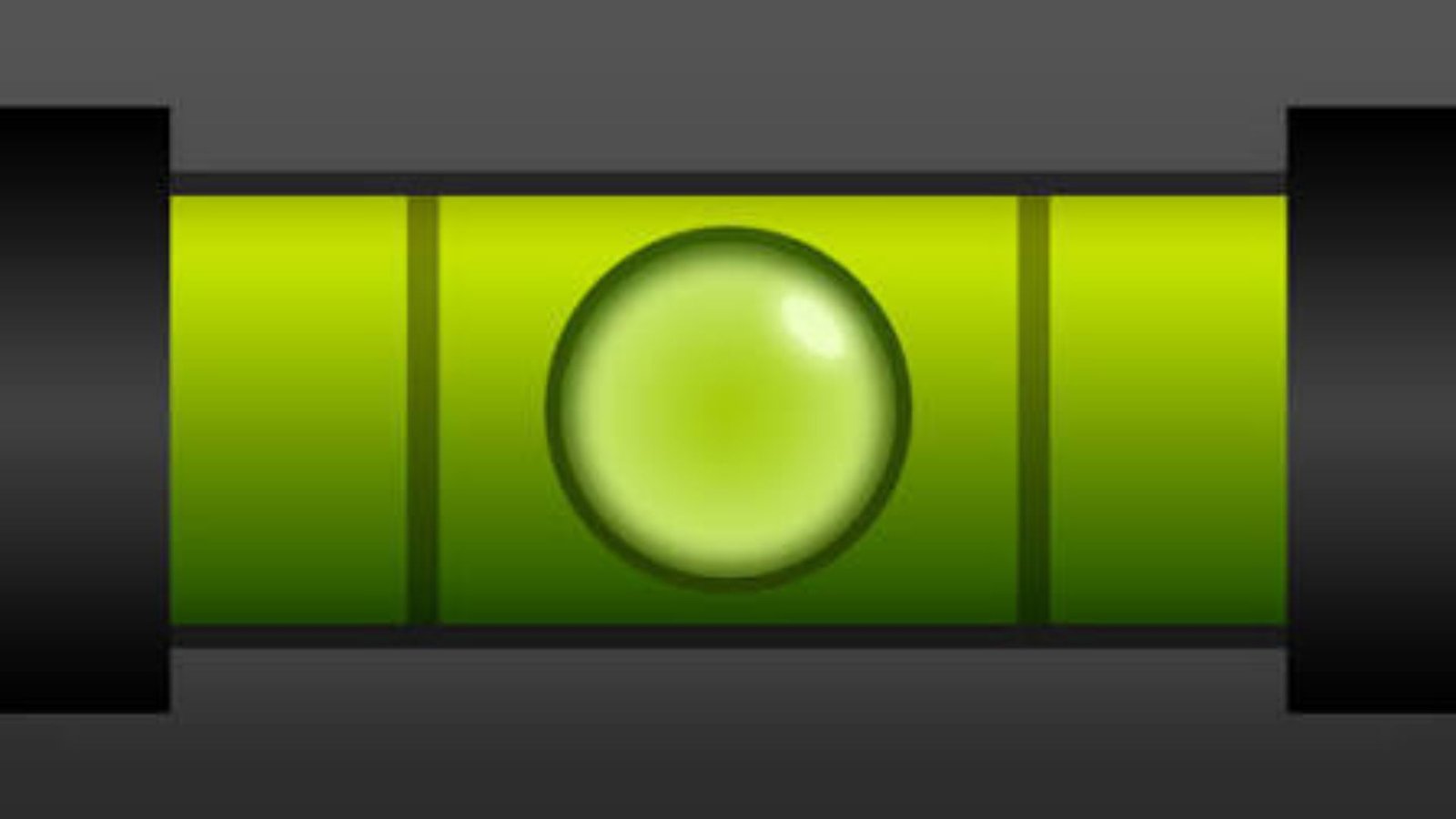
Need to hang a picture, straighten a shelf, or check whether your table is perfectly flat? You do not always need to buy a physical measuring tool. Google Bubble Level offers a convenient way to turn your smartphone into a digital leveling tool through Google Search. However, accessing it, understanding its readings, and getting reliable results require a few simple steps. This guide explains how to use it on Android and iPhone, what to do when it does not appear, and when a dedicated leveling tool is a better choice.
1. What Is Google Bubble Level?
Google Bubble Level is an interactive digital leveling tool that can appear in mobile Google Search when you search for the phrase “bubble level.” It uses your smartphone’s motion sensors to detect its angle and display whether the device is positioned horizontally or at an incline.
A traditional spirit level contains a liquid-filled tube with an air bubble. When the surface is perfectly level, the bubble settles between two marked lines. A digital version uses electronic sensors to estimate the phone’s orientation instead of relying on a physical bubble.
The tool is useful for everyday household tasks, including:
- Hanging paintings and wall decorations.
- Straightening shelves and cabinets.
- Checking whether a table is balanced.
- Aligning picture frames and mirrors.
- Adjusting small furniture items.
- Checking the approximate slope of a surface.
The main advantage is convenience. You can access the leveling feature through a mobile search without necessarily installing another application.
Quick answer: Google Bubble Level is a smartphone-based digital spirit level that uses motion sensors to measure tilt and help users align objects.
2. How Does Google Bubble Level Work?
Your smartphone contains motion sensors that detect movement, acceleration, and changes in orientation. These sensors allow applications and digital tools to understand how the device is tilted.
Android devices commonly include an accelerometer, while many also contain a gyroscope. Depending on the device, software-based gravity and rotation sensors can provide additional orientation information.
When you open the Google leveling tool, the phone’s sensors help calculate its position. The interface then translates the sensor readings into a visual indication of tilt.
Here is how the process works:
- The phone’s motion sensors detect its orientation.
- The system processes the sensor measurements.
- The leveling interface displays the estimated angle.
- You adjust the phone or object until the reading indicates level.
- The visual indicator helps you identify when the surface is properly aligned.
Understanding the main measurements
| Measurement | Meaning | Practical use |
|---|---|---|
| 0° | No detected tilt along the measured axis | Checking a level surface |
| Positive angle | Tilt in one direction according to the display | Identifying an incline |
| Negative angle | Tilt in the opposite direction | Identifying the opposite incline |
| 1°–2° | Small deviation from level | Fine-tuning shelves |
| Larger angle | More noticeable inclination | Checking uneven surfaces |
The sign and direction of an angle depend on the tool’s orientation and display convention.
An important detail is that sensor readings can vary between phones. Calibration, protective cases, device design, and the quality of the surface can influence the result.
3. How to Use Google Bubble Level on Android
Android guide
Using Google Bubble Level Android functionality is straightforward. You generally do not need a separate application if the interactive Search feature is available on your device.
Follow these steps:
Step 1: Open Google Search
Open the Google app or a mobile browser such as Google Chrome on your Android smartphone.
Step 2: Enter the search phrase
Type “bubble level” into the Google search bar.
Step 3: Find the interactive tool
Look for the interactive leveling interface in the search results. Its appearance and availability may vary depending on your device, browser, and current Google Search experience.
Step 4: Position your smartphone
Place your phone flat on the surface you want to examine. For a vertical object, carefully position the straight edge of your phone against it.
Step 5: Check the reading
Watch the visual indicator or angle measurement. Slowly adjust the object until the reading approaches zero degrees.
Step 6: Confirm the result
Check the position again after making the adjustment. For important installations, verify it with a dedicated physical level.
Tip: Remove thick or uneven phone cases if they prevent the phone from sitting flat against the surface.
4. How to Use Google Bubble Level on iPhone
iPhone guide
iPhone users can also try accessing Google’s interactive leveling feature through mobile Search. However, the feature may not appear consistently on every device or browser.
Here is how to try it:
- Open Safari, Google Chrome, or the Google Search app.
- Enter “bubble level” in the search field.
- Check whether an interactive level appears.
- Open the tool if it is available.
- Place your iPhone against the object or surface.
- Observe the angle or visual indicator.
- Adjust the object until the reading approaches zero.
An alternative built into iPhone
Apple provides a separate leveling feature inside its Measure app.
To use it:
- Open the Measure app.
- Select the Level feature.
- Hold your iPhone against the object.
- Adjust the object until the display turns green.
- Tap the screen if you want to capture a slope and compare it with another surface.
This is particularly useful when the Google Search feature is unavailable.
Apple also explains that its level measurements are approximate, so they should not replace precision instruments for demanding work.
5. How Do I Use Google Bubble Level? A Practical Example
Imagine you have purchased a new wall shelf and want to install it without making one side higher than the other.
You can use your phone to check the alignment before tightening the final screws.
Follow this practical method:
- Place the shelf in its intended position.
- Open the digital leveling tool.
- Position the phone along the shelf’s straight edge.
- Check the angle displayed on the screen.
- If the reading shows an incline, adjust the shelf.
- Continue until the reading approaches 0°.
- Tighten the mounting screws and check the alignment again.
Example measurement table
| Displayed reading | Interpretation | Recommended action |
|---|---|---|
| 0.0° | Level along the measured axis | No adjustment needed |
| +0.5° | Very small deviation | Check the alignment |
| -1.0° | Slight tilt in the opposite direction | Make a small adjustment |
| +2.0° | Noticeable inclination | Reposition the shelf |
| -4.0° | Larger inclination | Check the mounting points |
These are illustrative readings, not guaranteed accuracy specifications or universal construction tolerances.
6. Does Google Bubble Level Require a Download?
One common question is whether you need a separate application to use Google’s leveling feature.
The answer is no, provided the interactive Search tool is available on your device.
The distinction between a Search feature and a downloadable application is important.
| Feature | Google Search leveling tool | Dedicated level application |
|---|---|---|
| Separate installation | Not normally required | Usually required |
| Access | Mobile Google Search | Installed application |
| Uses phone sensors | Yes | Yes |
| Angle measurements | Depends on interface | Often available |
| Calibration options | Limited or unavailable | May be available |
| Additional measurement modes | Limited | Depends on the app |
| Offline availability | Depends on access and implementation | Depends on the application |
| Custom settings | Limited | Often more extensive |
When should you download a dedicated application?
Consider installing a separate leveling application if you need:
- More detailed angle measurements.
- Manual calibration.
- Horizontal and vertical measurement modes.
- Saved readings.
- Sound or vibration alerts.
- Additional measurement units.
- A dedicated interface that is easy to reopen.
Before installing an application, check its developer, recent reviews, privacy disclosures, permissions, and compatibility with your smartphone.
7. Is Google Bubble Level a Game?
No. Despite searches for Google Bubble Level Game, the feature is not a conventional mobile game.
It is a practical utility that helps users measure the orientation of their smartphones. Its moving visual indicator may look similar to a simple game interface, but its purpose is to help with real-world alignment.
Google Search also offers various interactive experiences, including games and useful mini-tools. However, the leveling feature should be understood as a measurement utility rather than entertainment.
What can you use it for?
- Checking whether a picture frame is straight.
- Aligning furniture.
- Measuring the approximate tilt of a surface.
- Straightening wall decorations.
- Checking small DIY projects.
If you are looking for a game involving a ball, obstacles, or balancing challenges, you need a different application.
8. Can You Say “Hey Google, Bubble Level”?
Voice search can make accessing smartphone tools more convenient. You can try saying:
“Hey Google, bubble level.”
Alternatively, you can use these voice commands:
- “Hey Google, search for bubble level.”
- “Open Google and search bubble level.”
- “Find a digital spirit level.”
However, there is an important distinction between performing a Google Search and directly launching an interactive tool.
Google Assistant may understand your request and display search results, but it does not guarantee that the interactive leveling feature will open automatically. You may still need to tap the appropriate result.
Typing the search phrase manually is a useful alternative when voice commands do not work.
9. What Does Google Bubble Level L Mean?
Some users search for Google Bubble Level L when looking for information about leveling tools or their visual indicators.
The letter L does not identify a separate, universally recognized Google Bubble Level feature.
In measurement terminology, an L-shaped level generally describes a tool or reference arrangement with two perpendicular sides. Such a design can help check alignment in different directions.
A digital level may also display different orientations depending on how you position your smartphone.
It is important not to confuse an L-shaped physical level, a digital leveling mode, and Google’s Search-based tool.
If you see an L-shaped indicator in a particular application, check that application’s instructions to understand what it represents.
10. How Accurate Is Google Bubble Level?
Accuracy is one of the most important considerations when using a smartphone as a measuring instrument.
A phone-based level can be convenient for household projects, but its readings should not automatically be treated as professional measurements.
Several factors influence the result:
1. Sensor quality
Different smartphones use different sensor configurations. Their ability to detect changes in orientation can vary.
2. Calibration
A poorly calibrated device may display an angle that differs from the actual surface angle.
3. Phone case
An uneven protective case can prevent the phone from sitting properly against the object.
4. Surface condition
Dust, uneven edges, damaged corners, and irregular surfaces can affect positioning.
5. Device movement
Moving your phone while reading the measurement can produce unstable results.
Smartphone level vs. traditional spirit level
| Comparison | Smartphone level | Traditional spirit level |
|---|---|---|
| Portability | Very convenient | Depends on size |
| Installation | No separate hardware needed | Physical tool required |
| Measurement display | Digital | Physical bubble |
| Calibration | Depends on software and sensors | Depends on tool condition |
| Battery requirement | Yes | No |
| Everyday household use | Convenient | Excellent |
| Professional construction | Requires verification | Suitable when properly calibrated |
| Sensor-related errors | Possible | Not applicable in the same way |
My recommendation: Use a smartphone leveling tool for quick household checks, but choose a calibrated professional instrument for construction, structural alignment, precision installation, and safety-critical applications.
11. What to Do When Google Bubble Level Is Not Working
Sometimes you may search for the feature but find ordinary web results instead of an interactive leveling interface.
This does not necessarily mean your smartphone is broken.
The feature may not be available in your current Search experience, or your browser may not provide the required sensor functionality.
Try these troubleshooting steps:
| Problem | Possible reason | What to do |
|---|---|---|
| Tool does not appear | Search feature unavailable | Try another mobile browser |
| No movement on screen | Sensor access or compatibility issue | Check device functionality |
| Reading keeps changing | Phone is moving | Place it on a stable surface |
| Angle seems incorrect | Calibration or positioning issue | Reposition and verify |
| Browser does not respond | Browser compatibility issue | Try another updated browser |
| Search shows ordinary websites | Interactive result not provided | Use a dedicated level app |
Additional troubleshooting tips
- Update your browser to its latest available version.
- Try the Google app instead of your current browser.
- Restart your smartphone if sensor readings appear frozen.
- Remove an uneven phone case.
- Test the device on a known flat surface.
- Try the iPhone Measure app or an Android leveling application as an alternative.
Remember that Android does not guarantee a universal, preinstalled bubble level application on every smartphone. Sensor availability and software features depend on the device.
12. Best Uses of Google Bubble Level in Everyday Life
A smartphone leveling tool can save time during small home improvement projects. You can use it for several practical tasks without carrying a separate instrument.
Here are some common applications.
Hanging pictures and wall frames
Place your phone against the straight edge of a picture frame. Adjust the frame until the displayed angle approaches zero.
Installing floating shelves
Check the shelf’s horizontal alignment before completing the installation. This helps prevent objects from sliding toward one side.
Aligning furniture
Place your phone on a suitable flat surface of a table, cabinet, or desk to identify an approximate incline.
Checking washing machines
A leveling tool can help identify whether a washing machine is unevenly positioned. Always follow the manufacturer’s installation instructions and check all required feet.
DIY woodworking
For small projects, a smartphone can help check the approximate alignment of wooden panels and other components.
Adjusting wall decorations
Use the tool to align mirrors, decorative panels, and other household items.
Checking surface slopes
A digital angle reading can help identify whether a surface slopes in one direction. However, it is not a replacement for professional surveying equipment.
13. Google Bubble Level vs. Dedicated Level Apps: Which Should You Choose?
The right choice depends on how frequently you need to measure angles and how precise your work must be.
For occasional household tasks, the Google Search option can be a convenient starting point. If you regularly perform DIY work, furniture installation, or detailed measurements, a dedicated application may offer more useful features.
Consider these differences:
| Your requirement | Recommended option | Reason |
|---|---|---|
| Hanging a small picture | Google Search tool | Quick access |
| Straightening a shelf | Google Search or dedicated app | Both can provide an angle reference |
| Frequent DIY projects | Dedicated level app | More measurement features |
| Detailed angle measurements | Calibrated digital level | Greater control over measurement |
| Professional construction | Professional measuring instrument | Better suited to demanding accuracy requirements |
| iPhone household measurements | Apple Measure app | Built-in Level feature |
A dedicated application is not automatically more accurate than Google’s Search tool. Its reliability depends on the sensor hardware, calibration, software design, and testing.
For demanding work, always verify smartphone readings with an appropriate calibrated instrument.
14. Important Tips for Getting Better Level Measurements
A few simple practices can improve your results and reduce avoidable measurement errors.
- Clean the phone’s edges: Dirt and debris can interfere with contact against a surface.
- Use a straight reference edge: Avoid placing your phone against irregular or curved objects.
- Keep the phone steady: Wait for the reading to settle before making adjustments.
- Check both directions: A surface may be level along one axis but tilted along another.
- Recheck after installation: Tightening screws or mounting brackets can change alignment.
- Compare measurements: Check a reading against a known level surface when possible.
- Use a proper instrument when necessary: Do not rely exclusively on a smartphone for critical measurements.
The most important practice is checking both horizontal directions when you need to confirm that a flat surface is level.
15. Frequently Asked Questions About Google Bubble Level
1. What is Google Bubble Level used for?
Google Bubble Level is a digital leveling utility that uses smartphone motion sensors to identify tilt. You can use it to straighten pictures, align shelves, check furniture, and perform simple household measurements.
2. Is Google Bubble Level free to use?
Yes, the Google Search-based leveling feature does not normally require a separate purchase or application download. However, its availability can vary depending on your device and Search experience.
3. Does Google Bubble Level work on Android?
Yes, Android users can try accessing the interactive tool by searching for “bubble level” through Google Search. The phone needs compatible motion-sensing hardware, and the feature must be available in the current Search experience.
4. Can I use Google Bubble Level on iPhone?
You can try accessing it through Safari, Google Chrome, or the Google app. If the interactive feature does not appear, Apple’s built-in Measure app provides a Level function.
5. Do I need to download Google Bubble Level?
No separate download is normally necessary for the Google Search tool. If you want additional features such as calibration, saved measurements, or sound alerts, you can install a dedicated leveling application.
6. Is Google Bubble Level accurate enough for professional work?
It can be useful for everyday household measurements, but smartphone readings depend on sensor quality, calibration, and positioning. For professional construction and precision work, use an appropriate calibrated measuring instrument.
Conclusion: Use Your Smartphone as a Convenient Digital Level
A smartphone can do much more than make calls, browse the internet, and run applications. Google Bubble Level is a useful example of how built-in motion sensors can turn an everyday device into a practical household tool.
Whether you use Android or iPhone, you can try accessing the Google Search leveling feature to check picture frames, align shelves, and adjust furniture. You do not necessarily need to download another application for occasional measurements.
However, remember that smartphone measurements are approximate. Check the calibration, position your device carefully, and use a dedicated measuring instrument whenever accuracy is essential.

1 Comment
Pingback: Is Rec Room Shutting Down? 2026 Closure Explained