

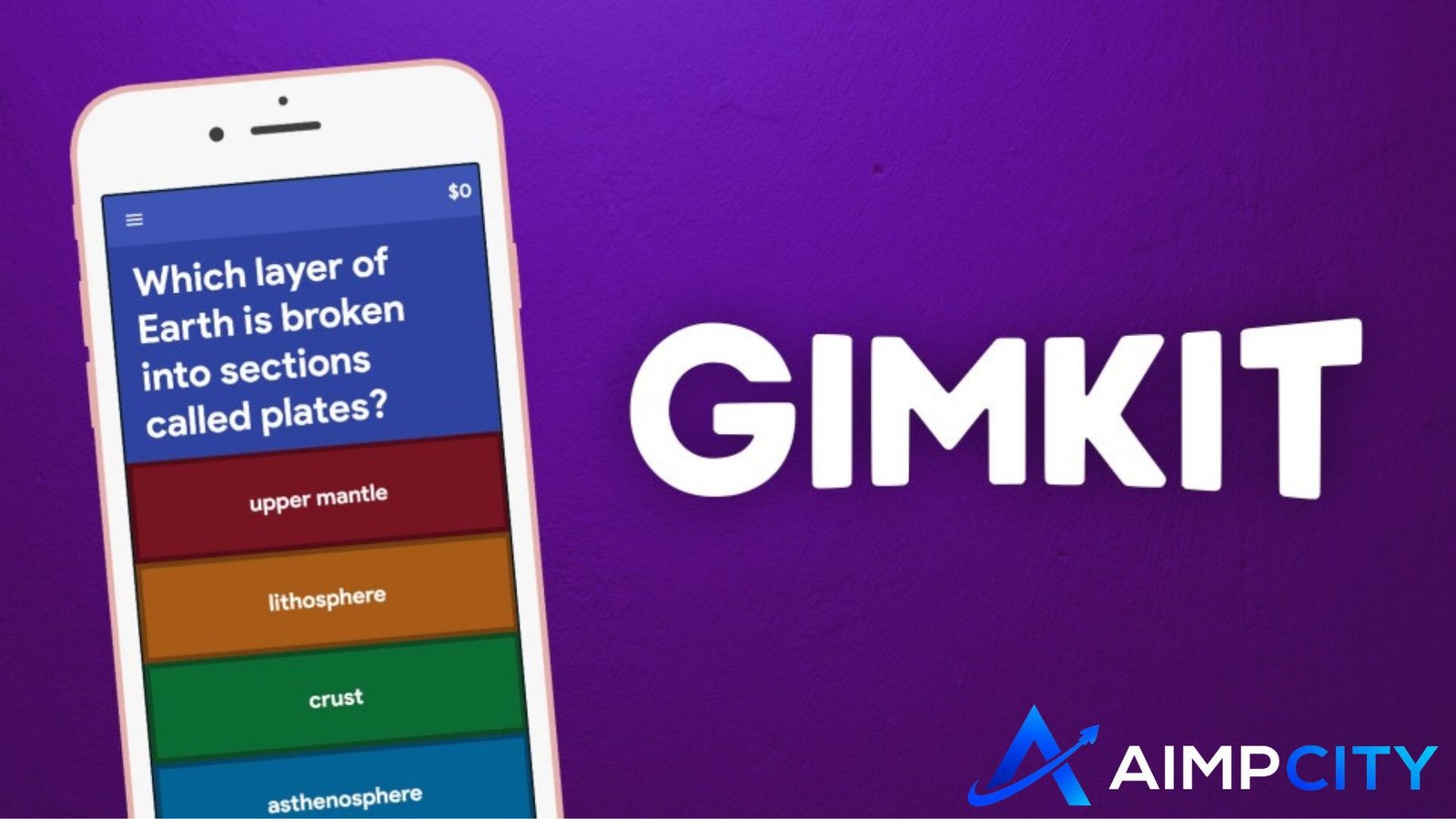
A Gimkit session often looks simple from the student side: get a code, enter a name, and start playing. The confusion usually begins when the code does not work, someone joins the wrong session, the teacher cannot find the right hosting option, or students focus more on the game mechanics than the questions.
That is where understanding Gimkit Live as a complete workflow makes a difference.
Gimkit Live lets an educator turn a question set, called a Kit, into a live multiplayer learning activity. The host selects the Kit and game mode, adjusts the session settings, opens a lobby, and gives players a game code, QR code, or join method. Students then enter the session and play while answering questions and interacting with the selected game mechanics.
This guide explains the entire process from both sides: Gimkit host setup, Gimkit code entry, Gimkit play, troubleshooting, classroom strategy, and practical ways to make a live session run more smoothly.
What Is Gimkit Live?
Gimkit Live is the real-time multiplayer side of Gimkit.
Instead of completing questions independently whenever they want, students enter the same hosted session and participate at roughly the same time. Depending on the chosen mode, correct answers may help players earn resources, progress through a game environment, compete, collaborate, or complete objectives.
The important distinction is that the questions and the game mechanics perform two different jobs.
The Kit provides the learning content.
The game mode provides the experience around that content.
That distinction matters because a visually exciting game mode does not automatically make a lesson effective. The strongest sessions match the mode, questions, duration, and learning goal rather than choosing a mode only because students enjoy it.
Gimkit’s current hosting flow starts with choosing a Kit, selecting a game mode, configuring game options, sharing access with students, and starting the live game.
How Gimkit Host Mode Works
If you are the teacher or organizer, you are the Gimkit host.
A host needs a Gimkit account to create Kits and host games, while student accounts are optional.
The basic workflow is straightforward.
1. Choose the Kit You Want to Use
Start with the questions students should review.
From the dashboard, a host can select a Kit and use the Play Live option to begin setting up the session. Gimkit then moves to the Mode Picker.
Before starting, quickly review the Kit.
Look for:
- Duplicate questions
- Incorrect answer choices
- Questions that require too much reading
- Content students have not yet learned
- Questions that are too easy for the intended review
A five-minute Kit check can prevent a twenty-minute live game from becoming frustrating.
2. Select a Game Mode
The next step is choosing how students will interact with the questions.
Different modes create different types of pressure, movement, strategy, or competition. Instead of asking, “Which mode looks the most fun?” ask:
What should students be doing mentally during this activity?
For rapid recall, a fast-paced format can work well.
For a topic requiring calculation or deeper reading, students may need more time between actions.
For a class that becomes overly competitive, a collaborative experience may produce better learning behavior than a heavily individual competition.
3. Configure the Game Options
After selecting the mode, Gimkit provides game settings. Available options can vary by mode. Current hosting controls may include options related to classes, nickname handling, game goals, and whether students can join late.
Do not rush through this screen.
The settings shape the classroom experience almost as much as the questions do.
For example, allowing late entry may be useful when students are joining from different devices. Gimkit states that live games allow late joining by default, although hosts can switch the setting off.
One small detail worth remembering: Gimkit says the selected late-join preference can carry over to the next game. If students unexpectedly cannot enter a future session, checking this setting should be one of your first troubleshooting steps.
How a Gimkit Code Works
A Gimkit code connects a player with a specific live session.
When the host reaches the lobby, a game code becomes available for players. Students can then use that code to enter the active game. Gimkit also supports joining through a QR code or a shared game link.
Think of the code as the session’s temporary entrance key rather than a general Gimkit password.
You do not normally search the internet for a random Gimkit code and expect it to provide access to the class you want. The useful code is the one being displayed or shared by the person hosting the particular session.
Where Does the Gimkit Host Find the Code?
Once the lobby opens, the game code is displayed on the host side.
During supported 2D games, Gimkit also keeps the code available in the upper-right area of the host controls, and the host can enlarge it for students who arrive late.
This is useful in physical classrooms because students frequently arrive at slightly different times.
The Best Way to Share a Gimkit Code
For a classroom, do not depend on only one access method.
A practical setup is:
- Display the game code clearly.
- Make the QR option available for students using mobile devices.
- Keep the host lobby open until most players are connected.
- Use a direct join method when students have difficulty typing the code.
Gimkit currently allows students to join through a game code, QR code, or game link.
That redundancy solves more problems than repeatedly reading the same code aloud.
How to Join Gimkit Live as a Player
For students, joining is much simpler than hosting.
The current Gimkit instructions are essentially:
- Get the code, QR code, or join information from the host.
- Open Gimkit’s join screen.
- Enter the game code when required.
- Enter your name or approve the generated nickname.
- Wait for the host to begin the game.
Students who are already signed in and connected through Gimkit Classes may have a more automatic joining experience.
Do Students Need a Gimkit Account to Play?
Not necessarily.
Gimkit states that educator accounts are required for creating Kits and hosting games, while student accounts are optional.
That distinction makes live classroom setup easier because a teacher does not always have to spend the beginning of the lesson helping every student create an individual account.
What Happens During Gimkit Play?
Once everyone is ready, the host starts the game.
What happens next depends heavily on the selected mode.
In some modes, the teacher may focus primarily on monitoring the class. In supported 2D modes, the host can participate as a player or spectate. Gimkit also provides controls for viewing players, checking the leaderboard, managing sound, monitoring time, and ending a session.
The key for students is to remember that the game is still driven by academic responses.
Fast movement or clever strategy may help in certain modes, but students still need to process the questions accurately.
Three Practical Insights That Improve Gimkit Live Sessions
Many basic guides explain where to enter a Gimkit code. Fewer explain why some sessions work smoothly while others become chaotic.
These three ideas make a noticeable difference.
1. Treat the Lobby as a Technical Check
The lobby is not just a waiting screen.
Use it as a 60-second device and connection test.
Before starting, confirm that:
- Most expected students have appeared.
- Names are recognizable.
- Nobody has joined twice.
- Students can see and interact with the game.
- The classroom network is holding up.
Starting immediately after the first few students join often creates interruptions later.
A short lobby check is usually faster than troubleshooting individual devices after the game has already started.
2. Choose the Mode After Choosing the Learning Goal
A common mistake is designing the lesson around the game.
Reverse that process.
First decide whether students need to recall vocabulary, practice calculations, identify misconceptions, prepare for an assessment, or review a large unit.
Then choose the Gimkit play experience.
For example, if students need careful reasoning, a setup that encourages frantic guessing can undermine the lesson even if engagement looks high.
Engagement and learning are related, but they are not identical.
A room full of excited students does not automatically mean students are processing the content deeply.
3. Use the Code as Part of Classroom Management
The game code seems like a technical detail, but it affects classroom flow.
If the code is too small, students repeatedly ask for it.
If it disappears too early, late arrivals interrupt the teacher.
If names are not checked before starting, identifying the right player later becomes harder.
A smoother routine is to make joining predictable:
Devices ready → code displayed → players enter → names checked → instructions given → game starts.
Students eventually learn the routine, reducing wasted setup time.
Gimkit Host vs. Gimkit Play: What Is the Difference?
The terms are sometimes searched as though they are separate products, but they describe different roles in the same experience.
Gimkit host refers to the person creating or controlling the live session.
The host usually:
- Selects the Kit
- Chooses the game mode
- Configures settings
- Shares the code
- Monitors players
- Starts and ends the session
Gimkit play refers to participating in the game.
The player usually:
- Receives the joining information
- Enters the session
- Answers questions
- Uses the mechanics of the selected mode
- Follows the host’s instructions
Understanding this difference can solve a common beginner problem: students looking for hosting controls they do not need, or teachers trying to join when they actually need to launch the session from their own dashboard.
Common Gimkit Live Problems and How to Fix Them
The Gimkit Code Does Not Work
First confirm the code carefully.
Then check whether the game is still active and whether the host has actually opened the lobby.
If classmates are entering successfully but one device cannot connect, the problem is more likely to involve that device, browser, network connection, or incorrect code entry.
A Student Cannot Join After the Game Starts
Check the host’s late-join setting.
Gimkit supports controlling whether players can enter after a game begins, and the setting can remain saved between games.
Students Are Guessing Instead of Learning
The issue may not be Gimkit itself.
Try:
- Reducing the number of repetitive questions
- Increasing question quality
- Reviewing mistakes after the session
- Using shorter games
- Changing the game mode
- Pausing afterward to discuss commonly missed concepts
The learning value often comes from what happens around the game as much as from the game itself.
The Host Starts Before Everyone Is Ready
Build a fixed joining routine.
Tell students not to begin other tasks while waiting. Confirm the player list before launching the session.
This small habit prevents repeated interruptions.
Smart Ways Teachers Can Use Gimkit Live
Gimkit does not have to be reserved for end-of-unit review.
It can be used at several stages of instruction.
Before Teaching a Topic
Use a short session to identify prior knowledge.
The goal is not to grade students but to discover what they already understand.
During a Unit
Use selected questions as retrieval practice.
This can reveal misconceptions before they become established.
Before an Assessment
Create a focused Kit around the most important concepts rather than copying the entire test.
A good review game should diagnose weak areas, not simply provide entertainment the day before an exam.
After an Assessment
Use missed concepts to create a corrective review activity.
Students often benefit more from understanding why an answer was wrong than from simply seeing their score.
Mistakes to Avoid When Hosting Gimkit Live
The most common mistakes are usually operational rather than technical.
Avoid:
- Starting before students understand the objective
- Selecting a mode purely because it is popular
- Using too many low-quality questions
- Treating the leaderboard as the only measure of learning
- Leaving incorrect answers unexplained
- Sharing the joining information unclearly
- Running the activity longer than students remain meaningfully engaged
A ten-minute focused session can sometimes accomplish more than a thirty-minute game that has lost its instructional purpose.
Conclusion
Gimkit Live becomes much easier once you see it as a simple sequence rather than just a game: prepare the Kit, choose the right mode, configure the session, share the Gimkit code, confirm players in the lobby, and then start playing.
The best Gimkit session is not necessarily the loudest, longest, or most competitive one. It is the session where the game mechanics support the learning objective, students spend meaningful time thinking about the questions, and the teacher leaves with a clearer understanding of what the class knows.
Frequently Asked Questions
What is a Gimkit code used for?
A Gimkit code is used to connect players with a particular live game session. The host displays or shares the joining information, and students enter the code on Gimkit’s join screen when required. Gimkit also supports QR codes and join links for live games.
How do I host a Gimkit Live game?
Choose a Kit, select Play Live, pick a game mode, configure the available options, and continue to the lobby. From there, share the joining information with players and start the session when everyone is ready. The exact options available can depend on the selected game mode.
Can I play Gimkit without creating an account?
Students do not always need individual Gimkit accounts to participate. Gimkit currently describes student accounts as optional, while educators need accounts to create Kits and host games. Always follow the joining instructions provided by your teacher or host.
Why is my Gimkit game code not working?
First check for typing errors and confirm that you are using the code for the current session. If the game has already begun, also check whether late joining is permitted. When other players can connect normally, troubleshooting the specific device or connection is usually the next logical step.
Can students join a Gimkit game after it has started?
Yes, when the host allows late joining. Gimkit says live games currently have late joining enabled by default, although the host can turn it off in the game settings. The preference may remain selected for future games, so hosts should check it when players unexpectedly cannot enter.
What is the difference between Gimkit Live and normal Gimkit play?
Gimkit Live refers specifically to a hosted, real-time session involving players joining together. “Gimkit play” is a broader phrase people often use when they simply want to participate in a game. In a live classroom activity, the teacher typically hosts while students join as players.
