

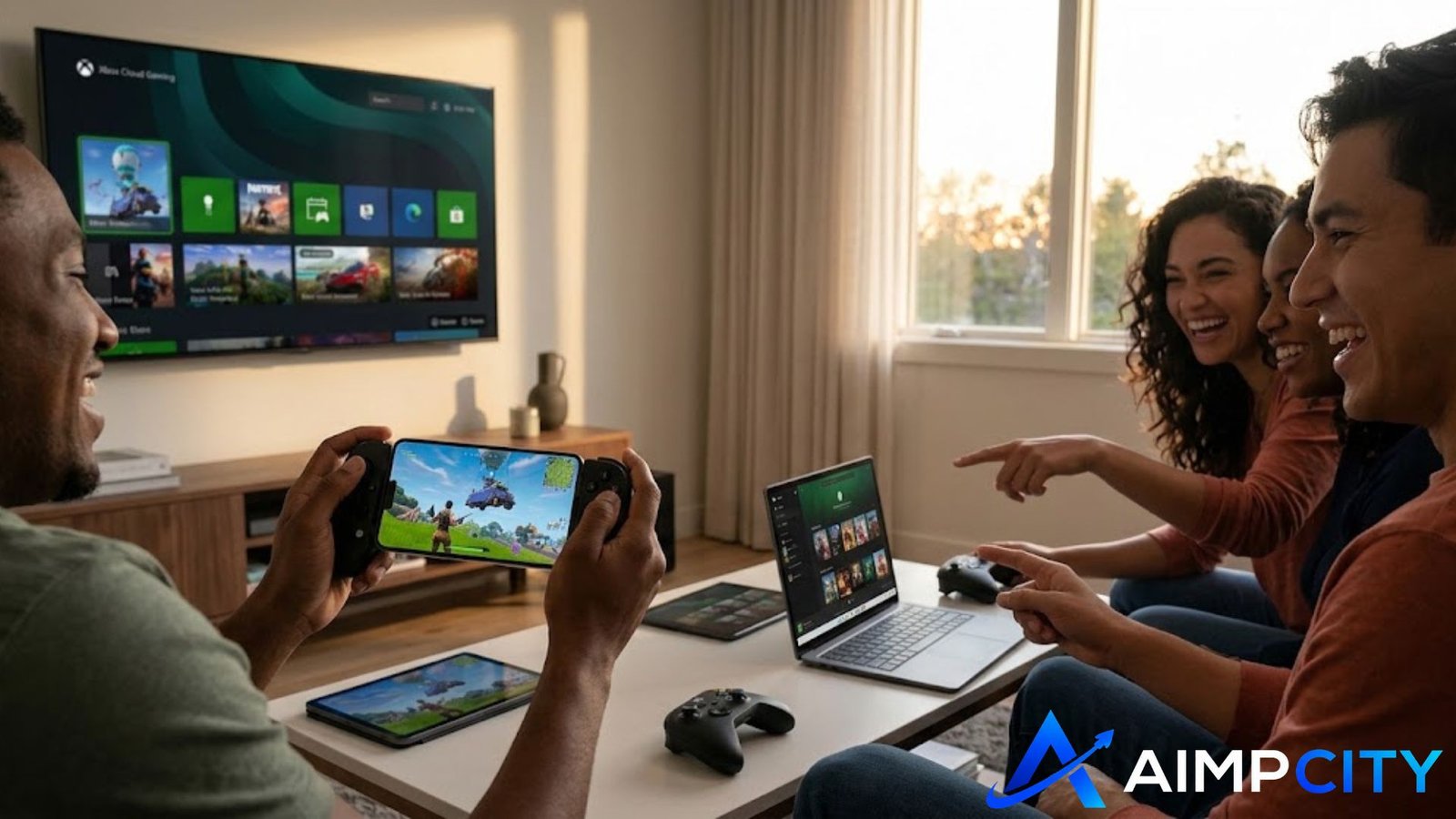
You sitting in a hotel room, stuck on a underpowered laptop, or riding a long commuter train, wanting to jump into a quick match with friends. In the past, missing your home console or high-end rig meant you were out of luck.
Xbox Cloud Gaming changes that formula completely. By running titles on custom Xbox Series X server blades and streaming the interactive video feed to your screen, it transforms phones, tablets, low-spec PCs, and Smart TVs into capable gaming machines.
However, cloud streaming isn’t plug-and-play perfection. Input delay, screen tearing, and confusing app installations across iOS and Android often sour the initial experience.
Whether you want to drop into Xbox Cloud Gaming Fortnite without spending a dime or optimize the Xbox Cloud Gaming app for lag-free performance, this guide breaks down real setups, hardware tweaks, and fixes that actually work.
How Xbox Cloud Gaming Works (And Why It Struggles)
Unlike downloading a digital game directly to a local hard drive, cloud streaming processes every controller input on a remote server, renders the frame, compresses the video, and sends it back to your device over the internet.
[ Your Input ] ---> [ Local Device ] ---> [ Internet Router ] ---> [ Cloud Server ]
                                                                          |
                                                                  (Renders Frame)
                                                                          |
[ Display Screen ] <--- [ Local Device ] <--- [ Internet Router ] <--- [ Video Stream ]
Because this exchange happens within milliseconds, raw download speed is rarely the bottleneck. You can have a 1-Gigabit connection and still experience unplayable latency.
The Three Factors That Break Your Stream
- Network Jitter and Packet Loss: Cloud gaming cannot buffer ahead like Netflix. If a single data packet drops, your screen hitches or freezes.
- Wi-Fi Frequency Bands: Standard 2.4 GHz Wi-Fi suffers from severe signal interference from household appliances and Bluetooth devices, causing sudden spike delays.
- Hardware Video Decoding: Older hardware may struggle to decode high-bitrate incoming video streams in real-time, creating local input lag even on fast connections.
Playing Fortnite for Free: Setup without a Subscription
Most Xbox Cloud Gaming titles require an active Xbox Game Pass Ultimate plan. However, Microsoft and Epic Games made a key exception: Fortnite is completely free to stream, with no paid subscription or credit card required.
┌─────────────────────────────────────────────────────────────┐
│              FREE FORTNITE CLOUD ACCESS                      │
├──────────────────────────────┬──────────────────────────────┤
│ Microsoft Account            │ Free Required                │
│ Game Pass Subscription       │ NOT Required                 │
│ Supported Web Browser        │ Safari, Chrome, Edge         │
│ Minimum Connection Speed     │ 20 Mbps recommended          │
└──────────────────────────────┴──────────────────────────────┘
Quick Access Setup
- Open Safari (iOS/iPadOS) or Google Chrome/Microsoft Edge (Android, PC, Mac).
- Navigate to
[xbox.com/play](https://xbox.com/play). - Sign in with any free Microsoft account.
- Search for Fortnite and select Play.
Mouse and Keyboard vs. Touch Controls
While Fortnite on cloud streaming supports full mobile touch controls and Bluetooth gamepads, mouse and keyboard support varies by platform. Browser-based cloud streaming natively expects a controller input mapping. If you play on PC through a browser, connecting an Xbox or PlayStation controller via USB or Bluetooth provides far smoother aiming than third-party browser extensions that map mouse movements to analog sticks.
App vs. Browser: Installation Across Devices
Setting up the service isn’t always as simple as downloading an app from a store. Due to platform rules, installation methods vary significantly across operating systems.
| Platform | Recommended Access Method | Setup Type | Controller Support |
| Android | Xbox Game Pass App / Web App | Native APK or PWA | Bluetooth, USB, Touch |
| iOS / iPadOS | Safari Web App (PWA) | Add to Home Screen | Bluetooth, Mobile Clamps |
| Windows PC | Native Xbox App | Installed Desktop App | Wired USB, Wireless Xbox Adapter |
| Smart TVs (Samsung/LG) | Xbox TV App | Native App Store | Bluetooth Gamepads |
The iOS Setup workaround (Progressive Web App)
Apple’s App Store guidelines restrict native cloud streaming stores. To bypass this on iPhone or iPad:
- Open
[xbox.com/play](https://xbox.com/play)in Safari. - Tap the Share icon at the bottom of the screen.
- Scroll down and select Add to Home Screen.
- Launch the newly created Xbox Cloud icon. It will run in full-screen PWA mode, isolated from browser navigation bars.
Practical Network Tuning: Fixing Lag and Stutter
If your gameplay feels floaty or visual artifacts cover the screen, default network settings are usually the culprit. Apply these practical fixes to clean up the stream:
Switch to 5 GHz or Wi-Fi 6
2.4 GHz Wi-Fi provides wider coverage but lacks the bandwidth capacity and stability required for real-time video decoding. Access your router settings and split your network SSIDs so your streaming device strictly binds to the 5 GHz or 6 GHz band.
Enable Location Services Bypass on macOS and iOS
A widely documented issue among cloud gamers on Apple hardware involves Airdrop and Location Services background scans. Every few minutes, macOS and iOS scan local Wi-Fi frequencies for location positioning, causing a major packet drop spike.
- Fix: Disable Location Services under System Settings while streaming games over Wi-Fi.
Force Ethernet for Fixed Platforms
On Windows PCs, Smart TVs, or docked Steam Decks, drop Wi-Fi entirely. A direct Ethernet connection eliminates packet variance, reducing total system latency by 15–30ms.
3 Lesser-Known Insights for Peak Performance
Beyond basic troubleshooting, these expert tweaks noticeably improve frame delivery and input accuracy:
- Prefer Chromium Browsers with Hardware Acceleration: On low-spec Windows laptops, running cloud streams through Microsoft Edge with Clarity Boost enabled significantly sharpens upscaled 1080p video streams without adding noticeable processing lag. Ensure Hardware Acceleration is turned ON in browser settings.
- Match Gamepad Polling Rates: Bluetooth controllers connected to Android devices often fall back to a low polling rate (125Hz or lower), creating inconsistent input latency. Connecting your controller via a direct USB-C OTG cable forces higher polling rates and strips away input lag.
- Use Wired Audio Jack over Bluetooth Headphones: If you connect both a wireless controller and Bluetooth headphones to your phone, the radio bandwidth gets overcrowded. This causes input delays or audio desynchronization. Use wired earbuds or route audio directly through your controller’s 3.5mm jack.
Conclusion:
Xbox Cloud Gaming strips away the traditional barrier of expensive gaming hardware, letting you jump into your favorite titles across hardware you already own. While raw connection speeds get most of the marketing focus, stability, frequency bands, and local display settings dictate your actual experience. Set up a clean 5 GHz Wi-Fi connection or wired hookup, configure your device’s browser or app properly, and you can enjoy smooth, console-quality sessions wherever you go.
Frequently Asked Questions
Do I need to own an Xbox console to use Xbox Cloud Gaming?
No console is required. All games are processed on Microsoft’s remote server infrastructure. You only need a compatible display device (phone, tablet, PC, or Smart TV), a stable internet connection, and a supported game controller or touch layout.
Why can’t I find the Xbox Cloud Gaming app on the Apple App Store?
Apple’s platform policies require every cloud game title to be submitted as an individual App Store listing. To provide a unified library experience, Microsoft operates on iOS and iPadOS via Safari web applications (Progressive Web Apps) saved directly to your home screen.
How much internet speed is required for a smooth cloud gaming experience?
Microsoft recommends a minimum download speed of 20 Mbps. However, low latency (ping under 40ms) and minimal jitter are far more important than raw speed. A stable 25 Mbps Ethernet connection will consistently outperform an unstable 300 Mbps connection on 2.4 GHz Wi-Fi.
Can I play multiplayer modes in Fortnite through Xbox Cloud Gaming?
Yes. When streaming Fortnite through Xbox Cloud Gaming, you connect directly to standard cross-play servers. Your friends list, cosmetics, Battle Pass progression, and cross-party voice chat sync seamlessly across platforms via your Epic Games account linking.
